Filter Quickly by Topic

Showing posts with label DJ. Show all posts

Wednesday, March 6, 2013

Internet Broadcasting from Ableton Live 8 / Ableton Live 9 (Windows)

Summary


The following post explains how broadcast from Ableton, in Windows, with no noise or digital artifacts, and virtually no audible latency; the delay between Ableton playing and you hearing it in your headset.  Oh, and did I mention, it's all free !!

Features

  1. Supports 4 output channels making it possible to support CUEing.
  2. Works with ASIO, which has low latency.
  3. Supports Shoutcast.
  4. Supports Icecast 2.x.
  5. Supports microphone input so you can do a real-time voice-over outside of Ableton Live.

Required Software

  1. Ableton Live 9 [Ableton Live 8]
  2. [Free] JACK Audio (link)
  3. [Free] Edcast v4 ASIO (link)
    1. Remember to create a short-cut.  The install doesn't do it for you.
  4. [Free] Lame MP3 Encoder (link) (installed in Edcast v4 ASIO directory)

Setup

Please follow carefully.
  1. Close down every other program that might be using audio.  This prevents unnecessary locking of audio files.
  2. Select the device you want to hear the music from Ableton in. I personally use a headset, but anything that is your DEFAULT audio port will work.
  3. Start Jack AudioPort
    1. You need to do this for Ableton can see the port and use JackAudio Control.
  4. Start Ableton Live 8 or 9.
    1. Open the Preferences, and go into "Audio".
    2. Select Driver Type "ASIO"
    3. Audio Device "JackRouter".
  5. Start JackControl
    1.  It should start with the connections window open, but if it doesn't click "Connect".
  6. Don't start EdCastAsio just yet, we'll do that later on.

Jack Control

This view is the default Jack with just Ableton Live running:


You will notice the there are two inputs for the microphone (lower left) running to the two inputs to Ableton in the upper right.  This corresponds to the input and output settings in Ableton's preferences:


Here we see the ASIO Device Driver and JackRouter set.  Note: You only can see JackRouter if you first start an audio port.  Inputs and outputs can be see by click the Input Config and Output Config buttons.  Here is the output:


If I turn on 3/4 stereo as shown below:


Then in Jack Control, you'll see two new outputs appear.


We can use these two extra ports to take advantage of the CUE feature in Ableton.  This is the ability to listen to audio on a separate headset than the main audio that will be broadcast.

Start EdCastASIO

This is Edcast running for the first time.  I have AutoConnect turned off.  You'll notice that in this picture, the L/R channels have sound.  This is caused because JACK connected the mincrophone to EdCast ASIO:


 What we want to do is route OUT3 and OUT4 from Ableton into edcastAsio. 


How we do this is very simple.  We select OUT3 and edcastAsio in1, and click "Connect", then OUT4 and edcastAsio in2 and click "Connect".

Now if we don't want our microphone going into edcast, we can select capture_1 and edcastAsio in1 and capture_2 and edcastAsio out2 ... one at a time and click disconnect:


So what this picture shows is Ableton 1/2 going to your system's selected headset, and Ableton 3/4 going to edcastAsio.  The system microphone is routed to Ableton's in 1/2.

With Ableton not playing, the Edcast panel looks like this:


You'll notice the peak meters are off to indicate no sound is present.

Setting Ableton's MASTER and CUE outputs

Here you can see CUE OUT is set to Channel 1/2 which means when channels 1/2 are playing we'll hear them in our headset, and the master is sent to 3/4 which is what is being sent on edcastAsio; and eventually to the internet beyond. 

Hitting Play, you'll notice sound going to 3/4, and nothing is being set to 1/2.  Looking at edcastAsio, you'll see it's peak meter moving, but you won't hear anything on your headset.  This is because nothing is being cued.

To use the CUE feature, click the button shown by the RED arrow below.  When you do the "S" buttons marked by the yellow arrows will turn to headsets.

 
Clicked ...


Click this button to hear the track you select it on.  If you click a different track, you hear that instead, which is a bit inconvenient.  If you want to hear multiple tracks, hold down the CONTROL key when clicking the button.

Between the track numbers and the cue buttons, you will see one of these four sound graphs.


Track:
  1. YELLOW on this track is being transmitted to the MASTER.
  2. ORANGE on this track means the track is on the MASTER channel, but in this case the midi for the track comes from someplace else, but it's still on the master.  The blue peak meter indicates the track can be heard on the CUE track.
  3. GRAY on this track means the track is not on the MASTER channel, but the blue peak meter means you are listening to on the CUE channel.
  4. GRAY on this track means the track is not on the MASTER channel, and the grey peak meter means the track is playing but it's not going to either the MASTER or CUE.

You don't have to use the CUE feature of Ableton 

I decided to describe the CUE feature first, so that you knew you didn't have to use it.  To not use CUE and to hear everything that comes out of Ableton that is being broadcast:
  1. in Ableton: Turn off the second part of outs for JackRouter.  You don't have to do this, but it does save CPU, so I recommend it.
  2. in Jack Control, reassign the outputs:

Your done.  Now whatever is coming out of Ableton, you will broadcast via EdcastAsio and hear on your headset.


Broadcasting with Edcast ASIO

By default, Edcast will have no settings, so you will need to add an encoder.  Simply click the encoder, and edcast will use this as a default:


You'll right click the encoder, and select configure.  Later on when you want to broadcast to this channel, you right-click again and select "Connect".

I won't go into all the settings, if you are familar with Shoutcast or Icecast.  Edcast handles both. Note: You will only see the MP3 encoder if you downloaded it from here (link) and installed it in the same directory as EdcastASIO.


Sunday, June 12, 2011

Virtual DJ Broadcaster using "Bare Bones"

A friend of mine said she knew nothing about broadcasting her music in to a private party in SL and wanted a way to do that.  I could explain all the steps, but decided to write a blog instead that showed her all the steps.

You can download "Virtual DJ Home" to practice everything this blog says, and when you are happy this is the solution for you pay for the Broadcast version.  You can even start the Home version and broadcast to the Internet for 10 minutes when you first try the program; so there are lots of options.

One of the strengths of Virtual DJ (VDJ) is the skinning ability.  I decided to write this tutorial using the "Bare Bones" skin cause it removes a ton of stuff that a new DJ doesn't need to know to simply broadcast music.  I also use VDJ because it has very smooth song to song fades and gives a new DJ a smooth result.  You can use other software like Winamp for free, but I found that it's cross-fading ability to be weak and buggy.  VDJ is smooth.

Basic setup of Virtual DJ to get you going fast

AFTER installing Virtual DJ from the link above, you'll want to also download and install the "Bare Bones" skin using this link.  Download is fast and install is even faster.

Now start VDJ and click the "Config" button in the top right corner of the window.


Next, move to the "Skins" tab and select the "Bare Bones v.1" skin:


Now go to the options tab, and set the Cross Fade to "Smooth" and the "Auto-Cross Length" to 8 seconds.  As you use the software you will adjust this length so that it fits yous sound the best.  This is the length of time VDJ spends fading from one track to another:


Click OK to close the Settings.  When you return to the main screen you will have notice the skin has changed to this look.  Click to see, but we will detail all the information you see here:


Next select iTunes from your the left panel:


And expand it.  This will list all of the playlists in your iTunes library.  Depending how you have organized the library this simplifies how you search for music to play.  Before you do a lot, you should figure out the Beats Per Minute (BPM) of all your songs.  This will take some time to do depending on how many songs you have.  The reason is you want to keep the BPM of all the songs as close as you can to each other.  They can be off, but the show will sound better if they are +/- 10BPM of all of them.

Select all the songs, by selecting the first one then pressing Ctrl+A to select All, then right-click the list and select "Scan for BPMs".  Go for coffee, and come back later.  :)


Now move your mouse to the right edge of the window.  to where it says "Playlist":


When you do, the playlist area will pop open.  To keep it open, move your mouse near the bottom of the window and click the "STAR" so it turns yellow.  This will lock the play list window open.


Now drag and drop songs from the middle window to the play list in the order you want to hear them play:

|||
V

After you have a play list, and you start it playing (see below), you can rearrange the playlist (click a song then drag it up/down the playlist).  You can also start a song early or replay the current one by double clicking the mouse.  It will take 8 seconds to fade from the current sound till the next sound.


To broadcast to the Internet you need a stream server.  VDJ supports both Shoutcast and Icecast.  Select Record (in the top-right)


In "Record" mode you are sending your sounds someplace.  Click "Broadcast", to send to the Internet.


If you have never set up VDJ to broadcast to the internet, you will need to configure details about the server you will broadcast to.  Therefore, click "Config" to bring up this next panel:


In Second Life you will get details as to how to fill out this form.  VDJ supports Shoutcast versions 1 and 2.  If you have a Shoutcast 1 server, you won't be given a user name.  Just leave it blank.  And Click OK.

When you are ready for your show and you have configured; simply click "Start Recording"


Now you should be streaming to the Internet.  It will tell you you have successfully connected because you'll get a message like this one.  If not, you will get an error message:


When you press play on the playlist, the music will be sent to the server you specified.  You will also hear it on your computer.

Now go back to the browser:


Now click the Auto-mixing play button in the top-left of the playlist:


Congratulations; you are now a DJ!  The first song you selected should now be playing.

That should be pretty painless.


Other Automix Options

The default automatic automix feature works well, but sometimes it cuts off quiet beginnings or endings of music, so there are other ways to mix:


Some of the Virtual DJ skin options

At the top of the window you will see the sound graph.  This graph allows you see the shape of the music.  The white bare in the middle is what is playing currently


If you click the WAVE button on the top right corner, you can change the format of the sound graph.  The mouse wheel changes the scale and there is a slider on the far left (not show) that scales the sound graph too.  Normally this is only useful if you are doing manually mixing .. otherwise for the beginner it is a pretty graph to look at :)

Careful not to LEFT click the sound graph, as you can scratch the sound.  Scratching is used by DJ's to give scraping noises in the playback.

On the left edge, you will see details about the current song being played:


This tells you the artist, title, BPM, Key, time into the current song and time left in the current song.

The next song to be played is on the bottom-right of the window:


To the right of this area you will see one of two mini sound-graphs:


The top version shows the current sound being played on the top and the RED markers indicate where the cross-fades from one song to the next will start for for both tunes.  When it is the last song in the playlist, you will see just the one sound graph. If you click anywhere along either sound graph, you can jump to that part of the sound.  I use this feature to click left of the red markers to test how the fade works.


Below the song is another row of controls; called the effects bar.


Loop In/Out allows you to replay the same sound over and over with some limitations.  First sounds can only be looped according to 1,2,4,8,16,32 measures; at 120 BPM 32 Measures = 32 seconds.  The length of time is dependent on the BPM.  Backspin, Beatgrid and brake are all DJ effects you can apply to the music.  You can play with them; but they are generally used in live play.  At the far right is the volume graph showing the relative volume of the left/right channels as the track plays.


FINALLY, you can adjust what columns you see by right clicking the titles of either the Library music tunes or the playlist colums to add/remove information:

Wednesday, April 13, 2011

SL Live Mixing DJ: Stage #1 - Broadcasting Audio with VAC

A few months ago, I transitioned from being a DJ that simply played tracks together to being a DJ that mixes and loops tracks live, so I can play a private parties.  For this, I was using Virtual DJ (Broadcast) to actually mix and broadcast songs together. This software is nice for doing loops because I can loop 1,2,4,8,16 and 32 measures, and when I want to loop something longer, I can do it by hand using a deck to deck transition or jump to a cue point using a hot button. 

But Virtual DJ has some serious limitations.  For one, I cannot use my midi keyboard and virtual instruments like Omnisphere and mixing more than 2 tracks is a mental challenge with just a mouse.  What I need is software that can map a hardware controller to the software.  Giving me the ability to manage sound of multiple tracks without using the mouse.  Virtual DJ has a US$300 option, but doesn't provide the ability to to use my virtual instruments.

In searching for software, I found a number of possibilities, but few had the ability to broadcast, and this limited the pool of available software.  That is until I discovered the US$30 Virtual Audio Cable (VAC).


What VAC provides is an in-memory audio mixer.  It can take audio output from multiple sources, mix it in real time.  Winamp can then listen to the Virtual Audio Cable and using Shoutcast DSP, broadcast it into Second Life.  Using Audio Repeater (also included with VAC) you can listen to the audio. 


Discovery of the Virtual Audio Cable hugely changes the for what software I need to mix, play live, and use a hardware controller.

Next up will be finding the right DJ software that allows Virtual Instruments, MIDI hardware mapping and hopefully something that doesn't have a vertical learning curve or is horribly expensive.

- Gin


Tuesday, March 8, 2011

Introduction to live DJing with Virtual DJ

This is the next instalment in the series on how to DJ in Second Life.  In previous blogs, I described Repear and Winamp, but I've put all those aside for my new favourite tool, Virtual DJ.  This $49 software gives me everything I need to DJ live.  You can get more expensive versions of the software all the way up to $300, but the $49 Broadcaster version does the trick.  At first I used it to have an intelligent mix of tracks, and a nice smooth transition from one track to the other.  These days, I am playing, looping and remixing tunes live and have had a ton of fun each time, I won't go back to just playing tracks.

Virtual DJ an Overview

At first glace, Virtual DJ (VDJ) is a bit overwhelming:


There is a lot going on in this interface, but now that I'm used to it, I can say that it's well thought out.  VDJ's interface is skinnable, and this is a snapshot of the 4-deck (1280x1024) interface.  Each deck has it's own settings and they are repeated on each deck:

A simple blog won't go through all the details but this deck tells me the song and gives a song graph.  The white vertical lines in the sound graph are the cues I predetermined, and I use these points so that when I am mixing live, I know where the important bits in the music start and end.

When you play live, you can see a detailed sound graph at the top of the window:


In a live set, you will do live remixing.  This is accomplished by looping a large sections of music within the same tune.  When one section ends, you loop back and replay the same section, and make the sound transition completely seamless. 

To achieve this, you load the same song on the left and right decks and fade between the two.  Notice the position of the colour of the deck in the sound graph.  The right deck (orange) is further along in the play than the left deck (green).  Also notice how the right deck in the top-left corner is highlighted orange.  This is the active deck. 

Note: Above the SYNC button there is a "master" indicator.  When you click the SYNC button, your track adjusts the the master track.  So to do a fade, I first line up the cues then do a SYNC on the green track to solidify the connection.


The important bits from the display are shown below.


The brighter orange (overlays the lighter green), as the Orange part music changes, you can slide the crossfader all the way to the left, to go from the sound on the Orange track to the sound on the Green track.  Practice and the sound style determines how fast to slide it.  With skill, you can now repeat a section and make it as if the music was meant to sound that way.

You can continue to fade back and forth between the two tracks to repeat sections over and over again, and as you practice, you can fade to the beginning, skip entire sections, or automatically repeat sections and listen to the looping part while overlapping some part of the song.

When done right, the sound is entirely seemless and a song, that was on 7 minutes originally, be looped and remixed and last 15-20 minutes, and be completely unique rendition of it each time you play it.

Practice, Practice, Practice

It took about 4-5 hours of practice before I was ready to play for friends.  Even after playing live I still make oopsies, but don't worry about it too much.  It's not like I'll stop the music, write into IM ... I messed up and restarting now.  Just chalk one up and continue.

I do know that it's really hard to play live AND IM at the same time.  So I generally avoid it unless I know I have at least a few minutes.  That's pretty rare, since some sections I am repeating are only 30 seconds long.  Lot of work and concentration.

To DJ Live or Not to DJ Live

I won't go back to just picking a set and playing it.  You can do this, and set it into automix mode and just let VDJ do the fades for you.  But there is simply too much fun and creativity that happens as a result of playing live.  It's always different.

- Gin

Monday, October 4, 2010

How to use iTunes, Reaper, Shoutcast and an Announcer script to be a professional looking DJ in Second Life

This is going to be one of those work in progress posts that describes how I became a DJ in Second Life. I've wanted to do this for some time, and as it turns out, already had all the tools to do it without one plug-in which I have now obtained.

Firstly, I use an Digital Audio Workstation (DAW) called Reaper (http://reaper.fm). A DAW is an audio composition tool for overlaying multiple sounds. It's what professional composers use to produce the music you listen to, and can run into the thousands of dollars.

Reaper is normally $225, but if you make less than $20,000/year from your music, they will sell you a discounted license for $60. Don't let it's price make you think it is sub-standard; it's amazing quality for what you get. As well, there is new release with new features every 2 weeks, so one license gets dozens of upgrades for free.

For me, I would pay more than $225 for it, because it provides me with features that $1000 DAW give. I started out with Sony ACID Studio and Pro, but found I couldn't run two Virtual Instruments (VSTi) at the same time. I got turned on by the richness of sounds from Spectrasonic's Stylus RMX and Atmosphere (and later Omnisphere), and you can sync the beat track of RMX to Omnisphere. But not having a tool means those programs are worthless.

Reaper is way more functionality than most people need to be a DJ in SL, but it does offer three huge benefits that other posters overlook. Cross Fading, Rendering and Projects. These are all part of Reaper, so there is no need to get a ton of technology and figure out how to make it happen.

Cross Fading is the ability to end one piece of music while beginning another. Doing this can be done graphically ... by simply dragging one piece of music visually over the other and you're done. Cross Fading can be a bit of a challenge if one song has a bunch of silence a the end or at the beginning, so in Reaper it easy to cut stuff off the beginning and end of a song before you do the cross fade.

Rendering is the ability to take your completed show and render it as a single result, and that result can be any in any audio format you want.

Projects are the ability to save your 2 hour sets so that they can be reloaded and played back easily. For me, this means producing a set of shows that I can use in other venues, or at least that's the idea.

Since Reaper is a DAW, I can also remix songs with it. I've never had the need/ability to techno-fy my chill-out music, but with tons of that kind of music it will be an interesting experiment. One of my VSTs is RMX which allows me to overlay beat tracks to the sounds. Omnisphere also has beats, but it's more of a synth designed for smoother sounds, plus millions of combinations of sound possibilities. That means I can mix the sounds together and play them back live into SecondLife for a really special result.


Kbs (Kilobits per Second)

Back in the day when CDs were first created, the CD format allowed for 72 minutes (and later 80) of sound. Rumor has it that it had to be long enough to fit one of Beethoven's symphonies on it uninterrupted.

It used 44,000 Khz and 16-bit stereo sound in a raw format eating up 176,000 bytes per second of CD space, or requiring 725 Mb for the 72 minutes of time. To transmit a byte on the Internet, 2 extra bits are used, so 176,000 bytes/sec, 1,700 Kilo bits per second (Kbs).

That's a lot of bits to push around, and unacceptable as a medium for transmitting sound over the Internet. But since then, different audio formats have come along that use a lot less bits to transmit the music. Seems our ears aren't all that great for hearing the high and low ends of the music, so it's wasteful to transmit them. New formats can stream out a similar but still high quality sound using only 128 Kbp, over 13 times less space.

iTunes

I use iTunes to organize my music library, because it reads most formats and I can convert them into MP3's which I use to broadcast with.  I use a global playlist contains all of the tunes that I create my sets with.  I don't use Genre in iTunes because I have Trance, Dance, Breaks, Progressive House, House, etc. in my sets.

Before you can convert to MP3, you have to tell iTunes that is the format you want.  To set it, go into Edit ::: Preferences, and select Import Settings:


Then from the next dialog, select MP3 Encoder from the "Import Using" drop down:


Next I start playing the play list and go into shuffle mode to play the playlist in random order.  This gives me a random selection of tunes.  If there is a tune I like that isn't MP3, I can convert it to an MP3 version.
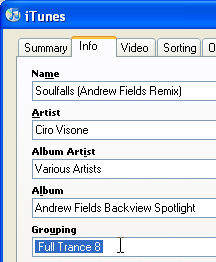
Once I have the MP3 Version, I update the "grouping" to identify which music goes into what sets, and I can prevent the same piece of music from being reused so that there is a unique show each time.  By going into "Get Info" (a little further up the menu shown here), and setting the grouping.  Now I can sort by the grouping and see all the music in a set:

This process simplifies the set arrangement process by ensuring that I get all the musical pieces in a single group.  If you want to order the compositions for arrangement, see below, suffix the grouping name with a number like "-01", "-02","-03", and so on.

Once you have a set of music, you can figure out how much time you have for it.  First, make sure you have your music library selected and not a playlist, by selecting Music under Library:


Then select all the tunes in your grouping, and at the bottom of the iTunes window, it will give you this statistic:

If it doesn't give you the precise time, then click the area first to switch the value to an exact time rather than an approximate time.

I always make sure the amount of time is about 2 minutes more than the set time, so that I can handle cross-fades and get the set time to exactly where I want it 2, 3 or 4 hours.

The Annoucer (Optional)

While Shoutcast supports the ability to announce whatever the current tune is, reaper doesn't.  Even if it did, I don't like the detail it gives and a viewer has to be able to support reading the stream.  Therefore I wrote my own shout cast Announcer which is part of my tip jar.  If you want the script, then send me a notecard IM in game and I'll arrange to get it to you.  The script took a lot of time to write and has a fee and will eventually be available in the Second Life Marketplace. 

My song announcer reports this information in this format using the special second life characters:
╔╦═════════════════════════════════════════════════════
║╟─✸ Set: Progressive Dance 1
║╟─✸ Song: 3 of 17
║╟─✸ Name: Endless Candy - Original Mix
║╟─✸ By: Weekend Heroes
║╟─✸ Album: Armada At Ibiza - The Closing Party 2010
╚╩═════════════════════════════════════════════════════
The SET is the name of the set of songs being played, and Album gives the release I got it from so that others can more readily find it.

To get this information into second life requires an export from iTunes and a different one from Reaper.  I then edit the output using OpenOffice and then read the two sets using a Second Life script.

iTunes Export for Announcer (Optional)

The first step is to get all the tunes from the set into a play list.  This is an easy drag-and-drop process to create the playlist.  Once you have the playlist, right click the name and select "Export..." from the menu:
Pick the first option in the type "Text Files (*.txt)" and specify an appropriate name.  I use "ITunes-PLAYLIST" .. so, "ITunes-Progressive Dance 1".


I then export the file again, but instead of saving it, I right-click the file I just created, and use the "Open With" ability and open it in Open Office.  This saves having to fine the file after it is saved.


I then specify the Separator options as Tab:
Then click OK to open the file.  There are are four columns we need from this file, so all the columns except for:
  1. Name
  2. Artist
  3. Album
  4. Location
Are deleted from the file.  Location is used to cross reference a start time in the Reaper file.


IMPORTANT PRIVACY NOTICE: Before continuing to the next step, have a look at the names contained within the Location column.  Since this file will eventually be copied into Second Life, MAKE sure it doesn't contain any personally identifying information.  In my example, I use a separate hard-drive partition (P) to save details about my songs, but many people use "My Documents" and this often contains your real name.  My recommendation is to use a "replace" operation to change the name of any private information.  Whatever modifications you make, they have to be consistent, because the system matches against the FileName column in Reaper against the Location name in iTunes.  If they are not the same, the load fails.  See below.

Review the columns to make sure all the information you want is included, then save the file using the type "Text CSV (.csv)" and remember to check on "Edit Filter Settings":

By clicking on Edit Filter Settings, you get another dialog box.  Specify the field delimiter as a tilda (~) and the text delimiter as nothing:


Then click OK to save the file.


iTunes to Reaper


Now start up Reaper, start a new project, add a track, and drag the all the files to the track in reaper.  In iTunes, click and hold the left-hand mouse button, then drag to the right the files.  This will pop open a drag image identify the number of tunes you are dragging:
and drag the files to the left-hand side of the Reaper track:


It will ask you if you want the files on a single or multiple track, click "NO" to put everything on a single track:


Now Reaper then lays down all the audio track side-by-side.  They appear red in this image because I have changed the colours in my environment.


The next step is to cross fade the selections.  The first stage is to trim off low volume parts of the music at the end (or start) of a musical selection.  Move your mouse to the edge of a song and when you see this cursor, click and drag the mouse left/right to trim the music:

TO:


Now start playing the music.  Doesn't matter were exactly, just that it has to be playing, and drag the music so that it overlaps, and let go of the mouse.  When you do the music position is moved a little to the left of the cross fade so you can hear the entire cross-fade. 

Listen to the fade to make sure it sounds correct, or shift the starting point/overlap until it sounds good.  Some times you have to turn snapping Off (Alt+S) to make it align better.

Now repeat the process for the entire set, and save the project.  Now listen to the set and make sure there are no glitches in the music and is what you want it to be.

Reaper Export for Announcer (Optional)

 This is the second half of the export required to seed the script in Second Life with accurate song, artist and album information.  Inside Reaper, after saving the project as an RPP file.  Save it again:

And save it as a "EDL TXT (Vegas) (*.TXT)" File type.  I prefix the file name with REAPER to differentiate it from the iTunes export files:

Like the iTunes export, save it again as TXT and use the Open With to open the file in Open Office.  This time open with semi-colons and make sure TAB is turned off!!

Delete all the columns except for:
  1. StartTime
  2. FileName


IMPORTANT PRIVACY NOTICE: Before continuing to the next step, have a look at the names contained within the Filename column.  Since this file will eventually be copied into Second Life, MAKE sure it doesn't contain any personally identifying information.  In my example, I use a separate hard-drive partition (P) to save details about my songs, but many people use "My Documents" and this often contains your real name.  My recommendation is to use a "replace" operation to change the name of any private information.  Whatever modifications you make, they have to be consistent, because the system matches against the FileName column in Reaper against the Location name in iTunes.  If they are not the same, the load fails.  See below.

Then do a save as "Text CSV (.csv)" and make sure Edit filter settings is turned on:

In the subsequent dialog make sure the Field Delimiter is a "~" and the Text Delimiter is blank:
Then Click OK to save the file.

Reaper to Shoutcast

Shoutcast is technology that takes an input (your music from Reaper) and distributes it to one or more listeners.  Reaper has a plug-in to enable this, and can be found here:


Download the appropriate plug-in for your Windows OS (32 or 64 bits).  And save it in the "plugins" directory for Reaper.

Next download the latest "lame_mp3.dll" encoder, which you can find here:


Install this in the same directory as the "reaper" application.  DO NOT install it in the plugins directory.


Now bring up the plug-in, by using the "Save Live Output to Disk" (Ctrl+Alt+B), which is found on the "File" menu.


This brings up an initial dialog where you select Shoutcast Source:


You have to click START to see the start parameters.  When you signup for a shoutcast service in second life you will get an IP, Host and Password.  Simply separate the IP and host with a colon, for example if the IP is "231.77.82.199" and the port is "4212", then Host:port is set to "231.77.82.199:4212".  Finally, set the appropriate password:

Connect and when you are connected, simply click play in Reaper and pat yourself on the back .. you are broadcasting!!

It does take 10-30 seconds for your music to leave your computer, be transmitted to the shoutcast server and rebroadcast to the Second Life residents.

Copying ITunes & Reaper Export to Second Life for Announcer (Optional)

The script works only with the files specified above.  For each set you copy the contents of the two CSV files you created previously, and copy them into a notecard.  In Windows, this is simply, open them in any text editor such as Notepad or Notepad++.

Once opened, in Notepad, press Ctrl+A (Select All) then Ctrl+C (Copy), to copy the text into the clipboard.  In Second Life, create a notecard.  The notecard name is either prefixed with one of these two to indicate it's type.
  • !ITunes-
  • !Reaper-
After the dash, you place the name of the set.  IMPORTANT, the name of the set must be the same on both files:
Open the notecard, and paste the clipboard contents (from Notepad) into the Second Life Notecard:

Repeat the process for the Reaper export file.

Now, make a copy of each of the "!Tunes" and "!Reaper" notecards in an object with the "!!Shoutcaster" script you acquired earlier.

Using the "!!Shoutcast Announcer" Script (Optional)


The "!!Shoutcaster" script uses the command line on channel "555" to work and only supports the Owner of the script, so somebody else typing these commands, beside yourself will have no effect on the script.  There are 4 commands, and they are listed in roughly the order you would use them.  The commands can be in upper and lower case.  For example "/555 Stop"
  • LOAD
  • DELAY
  • SYNC
  • STOP
LOAD tells the script to load a set from the notecards present.  Loading first loads the Reaper notecard which gives the start times and sequence of the tunes and then it loads the ITunes notecard which gets the song name, artist name and album information using the filename as the cross-reference between the two.  The name you provide is your set name:
  • /555 load Progressive Dance 1
    • Loads the "Progressive Dance 1" notecard for iTunes and Repear
DELAY is the combination of two numbers.  The default is 45 seconds.  The first number is the number of seconds it takes for your sounds to leave your computer, travel to the shoutcast server, then end up on your listeners computers.  In my case, this is about 25 seconds.  The second number is the number of seconds into the tune before the script identifies the song.  In this case, it is 20 seconds.  Total 45 seconds.

To change the delay, simply specify a new value.
  • /555 delay 33
Sets the new delay to 33 seconds.

SYNC is used to tell the script where in the song Reaper is currently playing.  You look at Reaper, and decide upon one of two formats for the SYNC command.  The timer contains beats and seconds, seperated by a "/".  We are interested in the value after the "/".  It accepts a time with minutes and seconds (MM:SS) or with hours too (HH:MM:SS):

Contains just the minute and seconds.  Ignore the stuff after the ".".  The sync command therefore is:
    /555 sync 12:24
Contains the hour, minute and seconds.  Ignore the stuff after the "." and the sync command therefore is:
   /555 sync 1:48:56

Since these commands are being entered as Repear plays, you will need to enter a value up to 10 seconds in the future, and count down your "ENTER" key press in Second Life when the time matches.  Once this occurs, the script will then play the current song that is playing according to Repear's current position and relative to the delay value you have specified earlier.

The SYNC command doesn't need to be incredibly accurate, it can be out by a few seconds, because different avatars in second life will receive your sounds at different times because their distance from the Shoutcast server.  This is why the default delay is 45 seconds and not 25.

STOP stops the script from broadcasting the current song.  Stop automatically happens after the last song is annouced.

Final Two Words

Have fun!

Followers
